

Data Loss Prevention (DLP) Policy M365 applications
DLP works to identify sensitive information held within OneDrive, SharePoint, Exchange Online and other M365 applications.
When attempting to share files and information within these applications through the native M365 functionality, DLP will check and flag if sensitive information is identified. The classifications are listed below
• Credit Card Number
• SWIFT Code
• US/UK Passport Number
• UK National Insurance Number
• UK National Health Service Number
• UK Electoral Roll Number
• UK Driver’s Licence Number
SharePoint and OneDrive
Please follow the steps below when prompted in OneDrive, SharePoint or any other O365 application with sharing functionality:
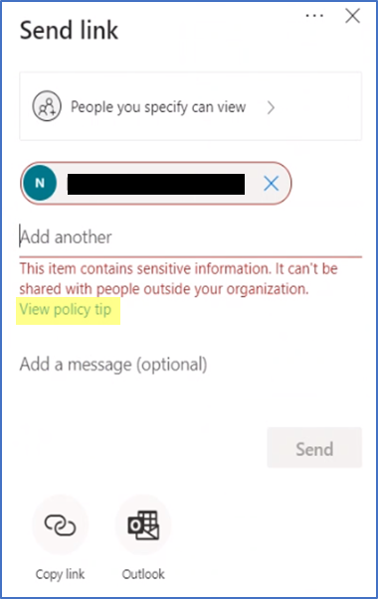
1. You will be prompted with a DLP pop-up when attempting to share sensitive information externally.
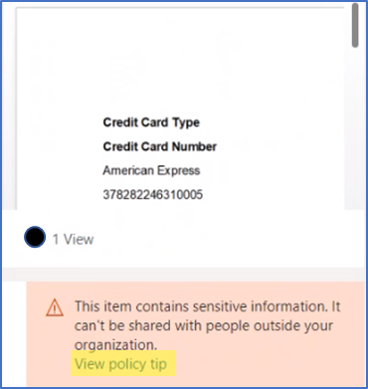
2. Please check the content of the document shared for any potential breaches of policy and ensure it is being sent to the correct recipients
3. If you wish to proceed, please click View Policy Tip
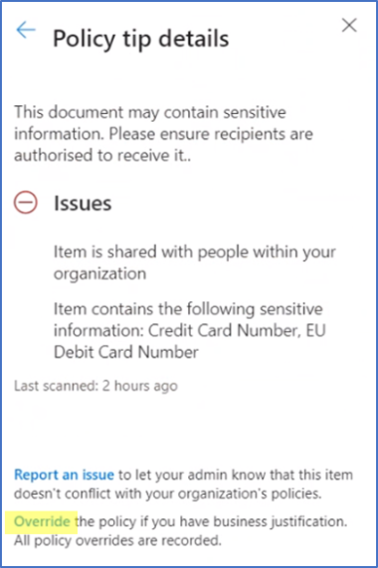 4. Select Override
 5. Similarly to the Exchange Online DLP policy, you can override without any justification and continue to share the document. You will then receive a notification at the bottom of the pop up to show that the Policy has been overridden. Select Go back to continue sharing to complete the transfer.
6. Select ‘Send’ to share your file
Exchange Online and Microsoft Teams
From 31 March 2026, a new DLP policy applies to:
- Exchange Online
- Microsoft Teams
The new DLP Policy for Exchange Online and Microsoft Teams aims to reduce unintended sharing of sensitive data.
It uses detection tools to automatically identify specific types of sensitive information during email composition in Outlook or when sending messages in Microsoft Teams.
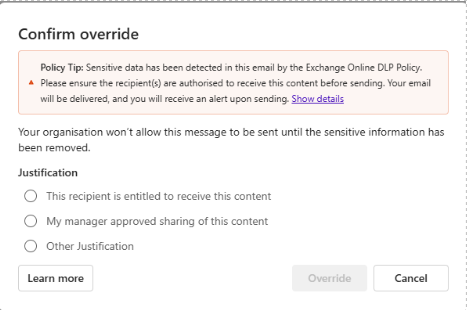
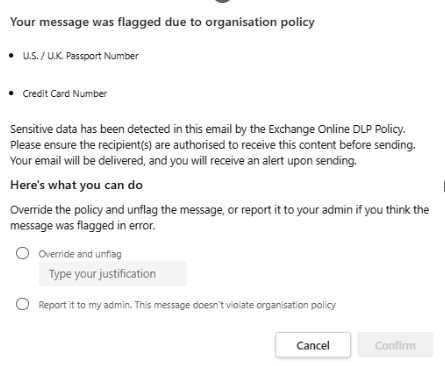
Please see below the example notification which will appear when sensitive information is identified:
Exchange Online:

Microsoft Teams :

When sharing information externally (for example, messages or emails sent to recipients outside nhs.net), the notification will indicate that the recipient is “External.”
Exchange Online:

Microsoft Teams:
If you believe your content was flagged in error, you will have the ability to report this via the policy.
Exchange Online
Microsoft Teams
| Last Reviewed Date | 11/03/2026 |
