
Guidance for both Teams desktop and Teams web applications
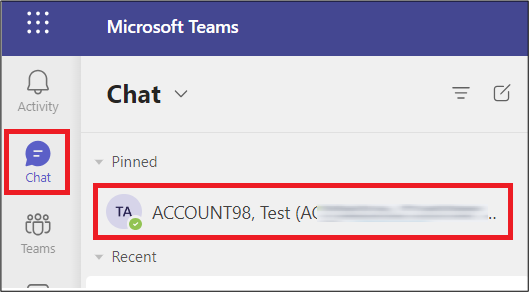 1. Click the Chat icon on the left menu bar, and find your own profile icon, hover your mouse cursor over your profile icon, to load your contact card.
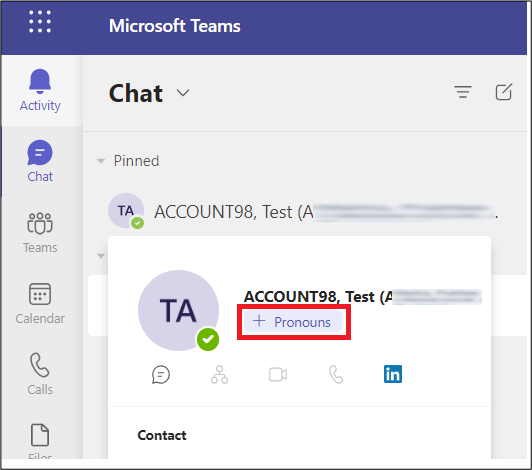 2. In your contact card you will then see the ” + Pronouns” add pronouns button, click this. NB if you are unable to see the Pronouns button please restart your device.
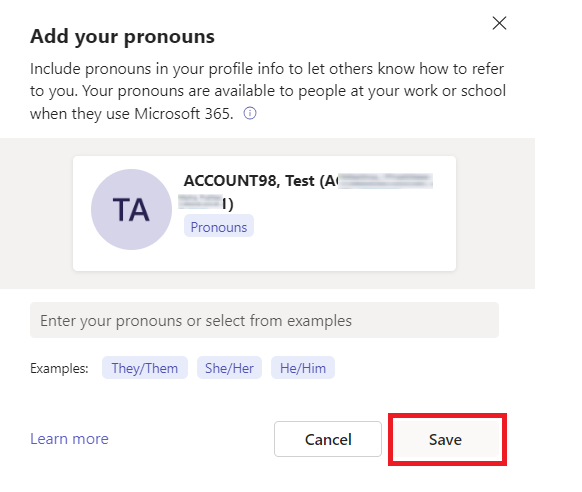 3. In the “add your pronouns” window you can add your pronouns as you require, or choose from the examples below. Then click Save.
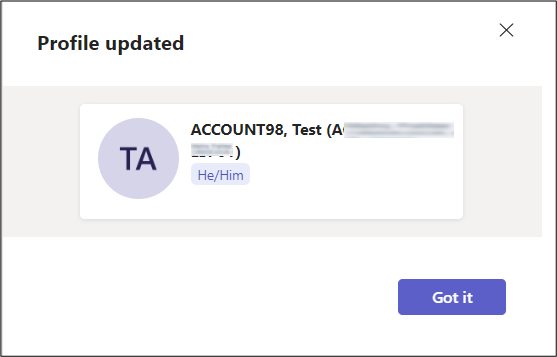 4. You will then see a “Profile updated” confirmation card.
How to record your name pronunciation
Open your profile card in Teams or Outlook on the web (hover over your profile picture, or click your name).
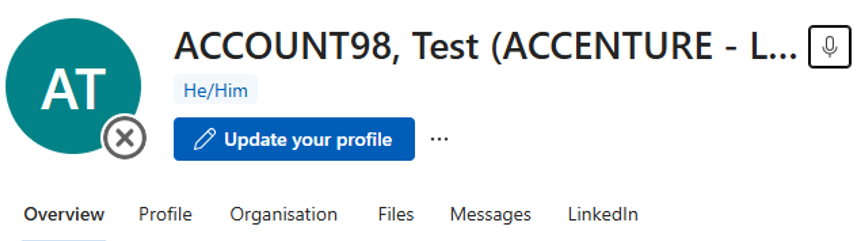
1. Select the microphone icon next to your name.
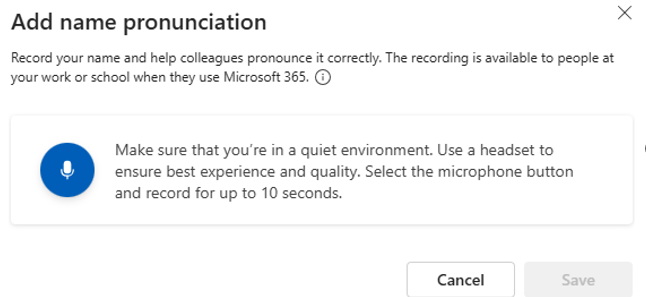 2. Click the microphone button to start recording (max 10 seconds). Click it again to stop.
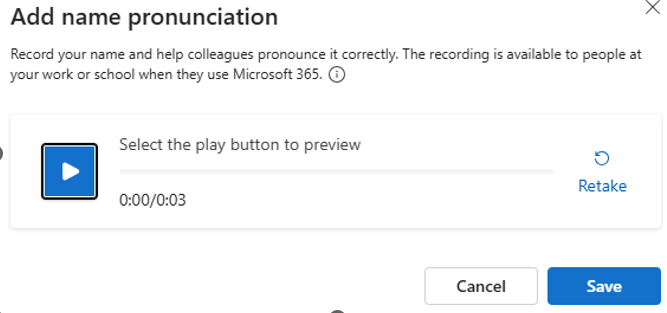 3. Preview, retake or save the recording.
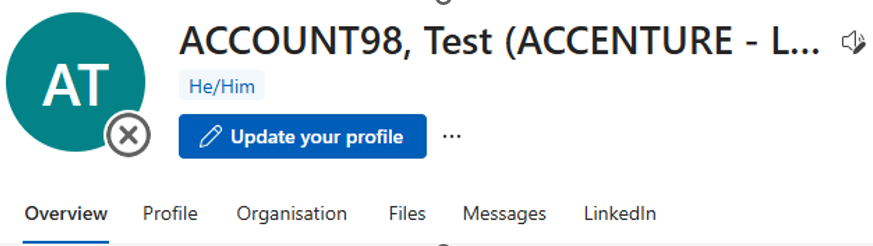 4. Once saved, your profile card updates immediately to a Speaker icon.
To change or delete it:
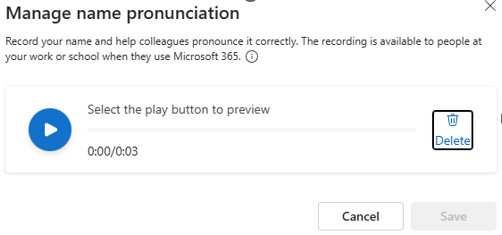 1. Open your profile card, select the speaker icon next to your name, then choose the trash icon and confirm Yes, delete. Record a new clip anytime via the microphone icon.
| Last Reviewed Date | 23/07/2026 |
