
General Guidance
 Make sure that you are up to date regarding your organisation’s data privacy and information governance considerations. Contact your Local Administrator (LA) or local IT team in case of questions.
 Please refer to your local policies regarding the recording of meetings.
 Be aware that local settings may make the Teams experience different between organisations.
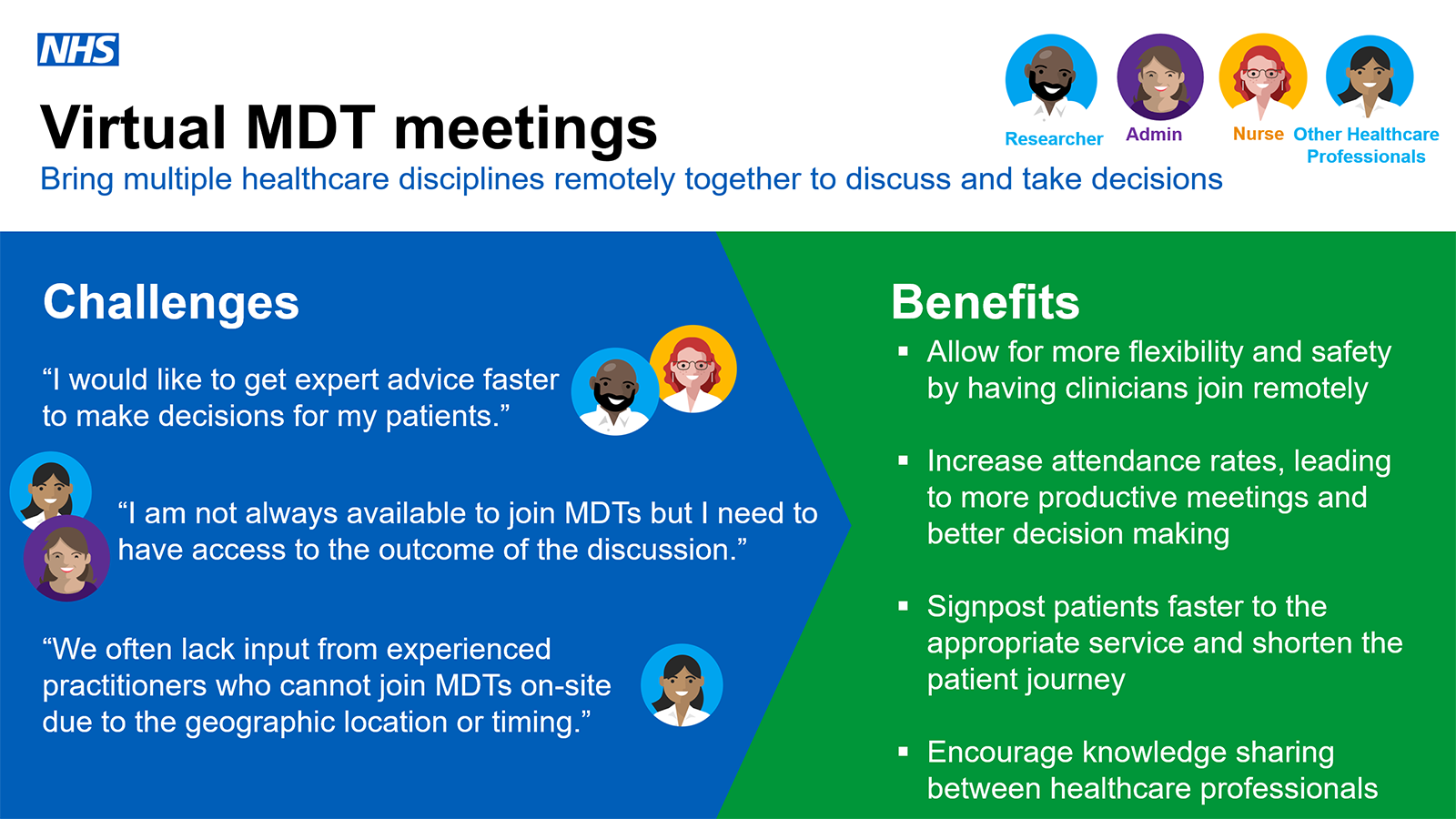
 It can be useful to confirm prior to the virtual MDT meeting whether participants are expected to dial in via video, or whether audio is sufficient so that attendees can get themselves set up accordingly.
 Note that Microsoft Teams is an ever-evolving tool and you might experience small incremental changes to the meeting experience.
Preparing for the MDT
1. Collaborating across NHS organisations
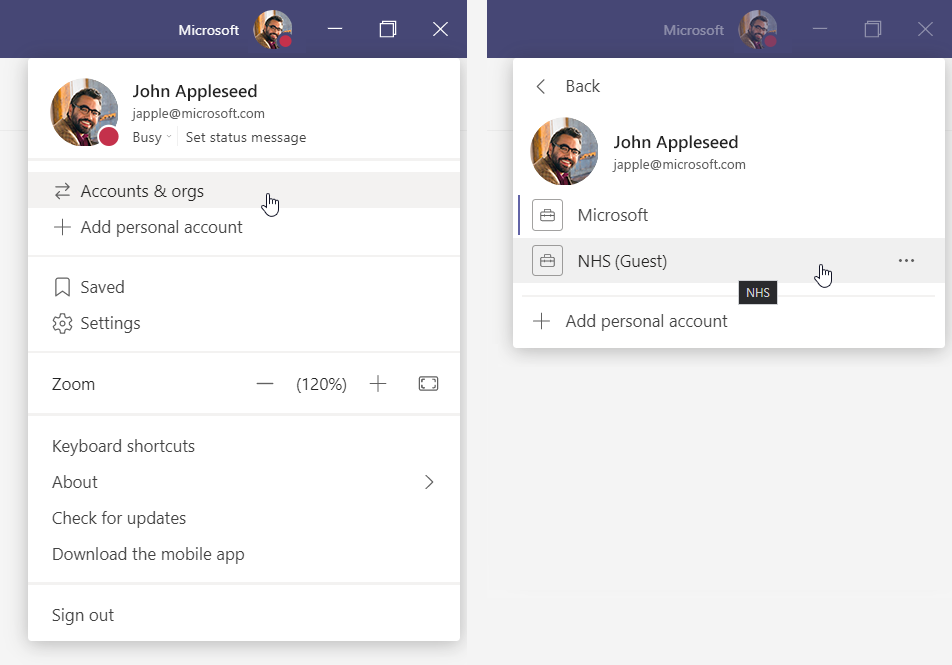 If you want participants who are from an external ‘non-NHSmail’ organisation (and not federated, see list of federated organisations here) to collaborate on data, grant them guest access to a Teams site that you have set up for this MDT meeting or for the series of MDT meetings (here’s how to add guests to your Team). Let these participants know before the meeting that they are required to switch tenants. When they click on their profile picture in Teams, they’ll choose ‘Accounts & orgs’ and join your tenant for the meeting and for potential follow-up after the meeting.
2. Guests functionality
3. Choose a background
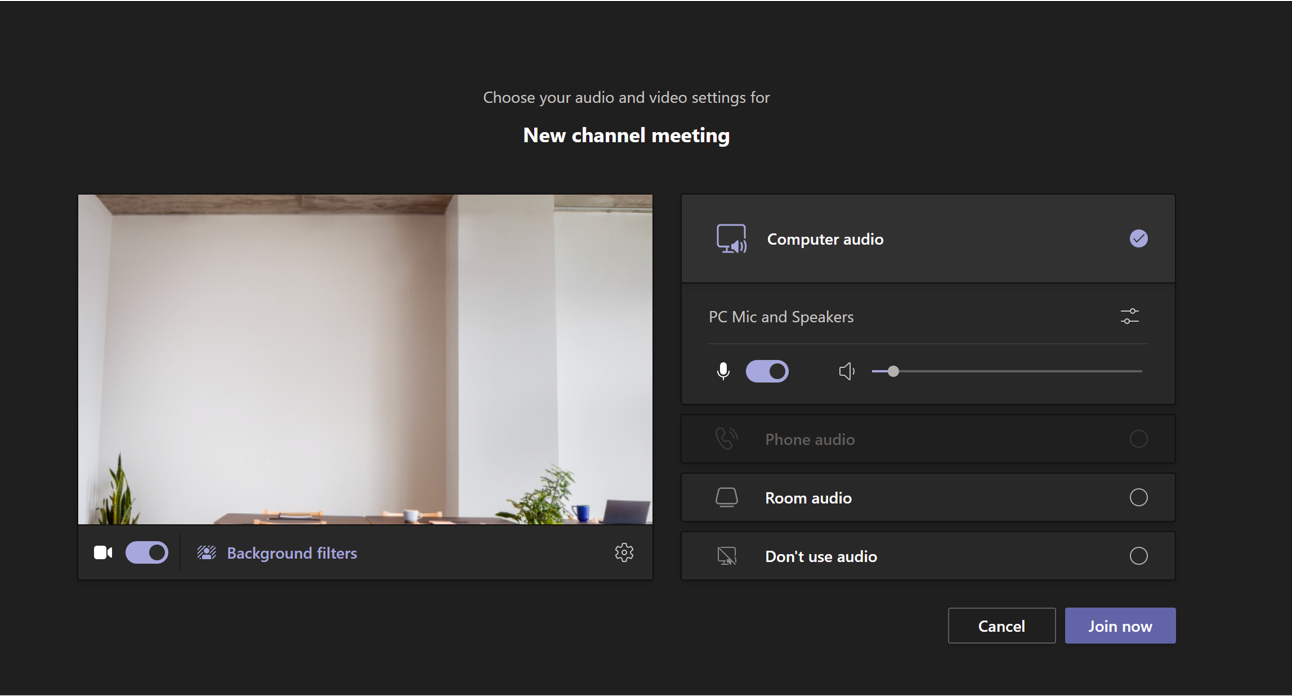 Choose a background so that the participants can focus on you, especially when you are in a busy environment. There may be approved backgrounds that are recommended by your organisation. You can change your background during the meeting as well. For further information please visit Change your background
4. Adding meeting coordinators
Being efficient during the MDT
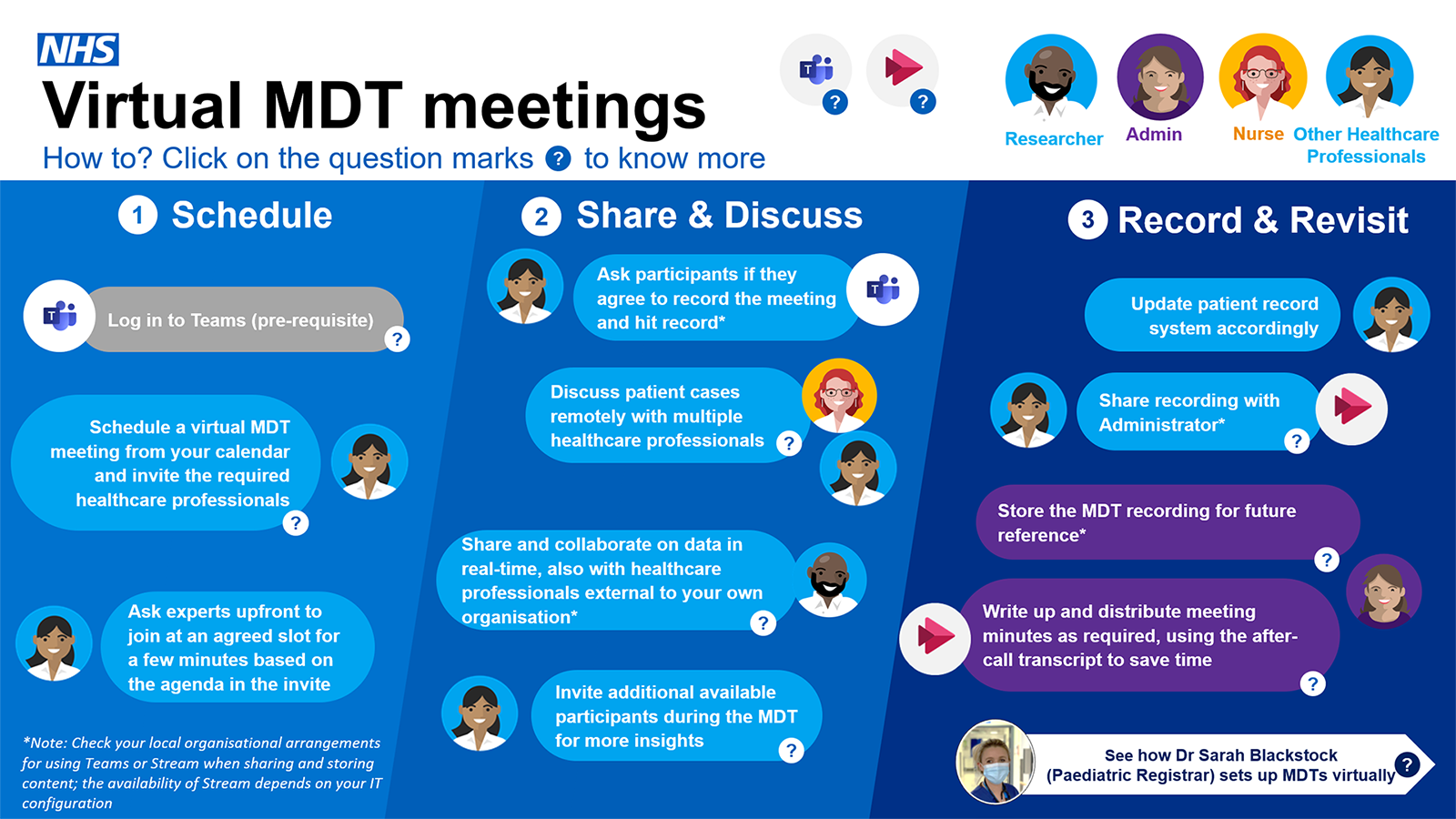
1. Recording a meeting
2. Use Live captions
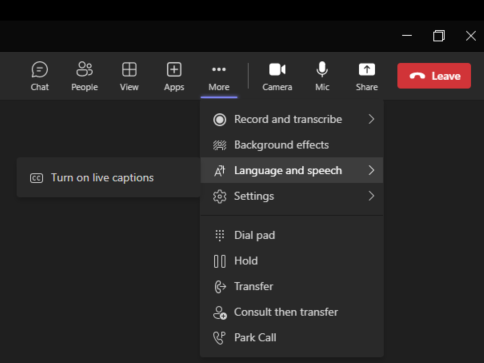 You can use live captions to follow subtitles of the conversation. Please note that function to turn on/off Live Captions in Teams has moved and now sits under Language & Speech within the extended settings menu.
3. Meeting minutes
FAQs
Guests cannot access meeting recordings via a link to the recording on Stream. If you want to share the recording with them, the person who recorded the meeting will need to download it from Stream and upload it in the files section of a Teams channel that your guests have access to. Click here for more information. Please check the information governance in place for your organisation regarding recordings.
Be aware that Stream has been temporarily disabled across NHSmail and is currently undergoing review. If you need Stream and are on NHSmail, feel free to reach out to feedback@nhs.net. The team will review your case and enable Stream on a case-by-case basis.
If you want external guests to view the meeting minutes, add OneNote as a tab to a Teams channel that your guests have access to (click here to see how to). Then use this shared notebook to take meeting minutes and point your guests with a link to the relevant OneNote page.
For every participant to be able to add to the meeting notes in real-time, add a OneNote notebook to the Teams channel that you’re using for the meeting (click here to see how to). Then you can share a link to the meeting’s OneNote page in the invite (click here to see how to). This will allow all participants to view and edit the shared notes. This way, participants can also prepare for the meeting upfront using the meeting’s OneNote page.
When screen sharing in a meeting, be aware that the resolution in Teams is not configured to allow for diagnosis of any sort. We therefore don’t recommend sharing images via screen share. Images should be viewed through image viewing applications rather than via screen sharing.
Meeting participants from another tenant may not have the same functionalities due to local configuration.
Find out more about guest user access on NHS Support Net Guest User Access in Teams.
Email Templates


Testimonials
Virtual multi-disciplinary (MDT) meetings at University Hospital Southampton NHS FT
UHSFT References :
- Twitter : @UHSDigital
- Website : https://uhsdigital.co.uk/
| Last Reviewed Date | 31/01/2023 |
