

If you need to create or update a large group of users in bulk, you can do this by uploading a CSV (comma separated values) file containing the users’ details. Before you upload the CSV file, you must ensure the data is formatted correctly, using the same headings and in the same order as in the sample file.
To download the sample CSV file:
 1. Click Admin in the navigation bar at the top of the screen and select User Management from the drop down menu
 2. Click on CSV Upload
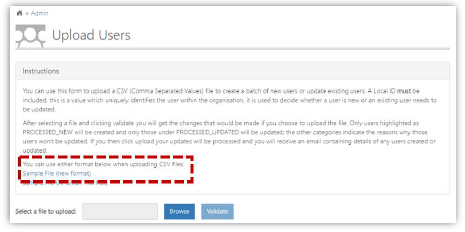 3. Click on Sample File (new format)
The sample CSV file will be downloaded
| Last Reviewed Date | 9/11/2019 |
