
Licensing and Other Pre-requisites
This article outlines the necessary licensing components required for organisations to implement Power Automate unattended RPA. It covers user licences, bot licences, and W365 Cloud PC/VM requirements.
Licencing for Unattended RPA is complex, please discuss your requirements with your local licencing reseller to agree compliant approach.
Licences should be procured by organisations locally. If you do not have licences assigned to you, please raise a ticket for onboarding the licences.
W365 Cloud PC
The licensing and other requirements for W365 Cloud PC as well as base and additional user licences to utilise unattended RPA are as follows:
Licensing Requirements
At a minimum, to run one unattended bot on a single W365 Cloud PC, you will require the following licenses:
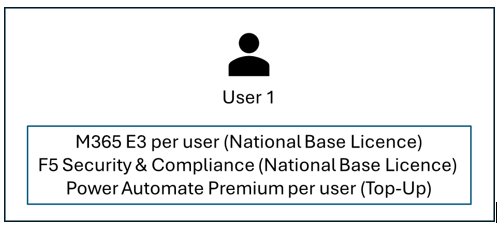
- Microsoft 365 E3 per user (or higher): Provides foundational access to Microsoft services like Outlook and SharePoint; this is licensed per user.
- Power Automate Premium per user: Allows individual users to build, run, and manage workloads using premium connectors and monitoring tools for Power Automate Desktop. This is licensed per user.
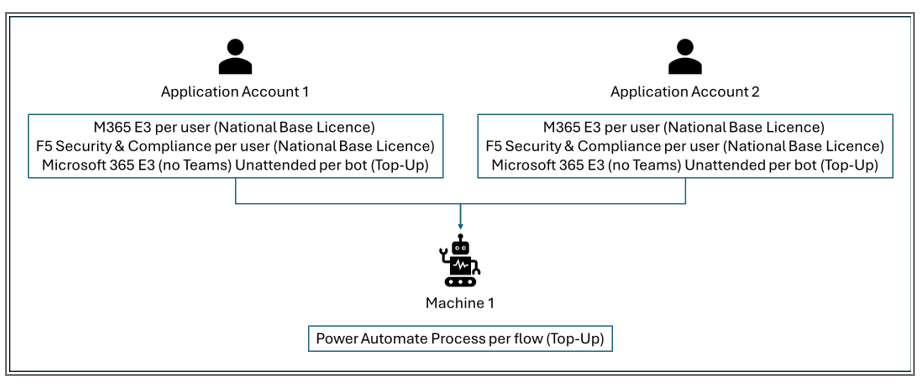
- Power Automate Process per flow: This licence is allocated to a machine, enabling it to run one desktop flow at a time as an unattended bot. To run multiple unattended desktop flows in parallel, purchase additional Process licences for the required number of parallel runs and allocate Process capacity to the related machines.
- Microsoft 365 E3 (no Teams) Unattended per bot: Allows Office applications to be used in automated workflows without requiring a user to be logged in. It is intended for application, service or non-user accounts to run Office applications in the background and is licensed per account. This licence is specifically for any Microsoft Office applications; additional licences may be required for other applications that are used or accessed in unattended RPA processes.
Windows 365 Cloud PC Plan per user: Offers a secure, cloud-hosted virtual machine environment for running unattended RPAs. Each user can be assigned a maximum of one of each of licence type. For more information on W365 Cloud PC’s, please refer to the W365 Local Administrator Guidance.
Service Pre-requisites
These are configuration or setup steps (not licences) that must be completed for the solution to work, such as provisioning a W365 Cloud PC and enrolling it in Intune.
- Windows 365 Cloud PC: You will need a W365 Cloud PC assigned to you. If you do not have one, please raise a ticket to onboard onto W365. In the ‘Detailed description’ box please state “PP RPA” which designates that the W365 Cloud PC is for Power Platform RPA and will ensure that the correct configuration is applied.
Onboarding to Intune: Your W365 Cloud PC must be onboarded to the Intune platform. If your organisation is not onboarded to Intune, you can register your interest. For organisations that are not eligible for Intune or have not completed onboarding, the W365 Cloud PC will be managed centrally by NHS England.
Optional Capacity add-on licence
- AI Builder add-On (T1, T2, T3) per environment: Provides additional AI builder credits (1,000,000 per licence). This is an optional licence that provides additional capacity when required. When onboarding this licence, admins can provide request allocation of the added credits to multiple environments.
Bring Your Own Virtual Machine (VM)
The required licensing for to utilise unattended RPA is as follows:
- Microsoft 365 E3 (or higher) per user: Provides foundational access to Microsoft services like Outlook and SharePoint and is licensed per user.
- Power Automate Premium (per user): Allows individual users to build, run, and manage workloads using premium connectors and monitoring tools for Power Automate Desktop. This is licensed per user.
- Power Automate Process (per flow): This licence is allocated to a machine, enabling it to run one desktop flow at a time as an unattended bot. To run multiple unattended desktop flows in parallel, purchase additional Process licences for the required number of parallel runs and allocate Process capacity to the related machines.
- Microsoft 365 E3 (no Teams) Unattended (per bot): Allows Office applications to be used in automated workflows without requiring a user to be logged in. It is intended for application, service or non-user accounts to run Office applications in the background and is licensed per account. This licence is specifically for any Microsoft Office applications; additional licences may be required for other applications that are used or accessed in unattended RPA processes.
Optional Capacity add-on
- AI Builder add-On (T1, T2, T3) (per environment): Provides additional AI builder credits (1,000,000 per licence). This is an optional licence that provides additional capacity when required. When onboarding this licence, admins can provide request allocation of the added credits to multiple environments.
Licencing and scaling automations
Managing multiple automations involves provisioning additional resources, managing process capacity, licensing, and monitoring tools to ensure optimal resource allocation and efficient automation infrastructure. The guidance below applies to scaling with both W365 Cloud PCs and Bring Your Own VMs.
Development environment: Each individual user requires their own Power Automate Premium per user licence. You can build and test desktop flows on your User Account in attended mode.
Test environment: Within this environment, you would need at least one Application Account and a Machine (e.g., Azure Virtual Desktop). These must both be licensed according to the guidelines, and your flows should be tested in unattended mode. Typically, flows are tested using one or two Application Accounts, depending on the volume being tested. Additional machines can be added if required. Owners must ensure that MFA is disabled for the Application Accounts running unattended flows, this is disabled by default when setting up Application Accounts through NHS.net Connect.
Application accounts for unattended RPA flows should follow the below naming convention:
URPA_Flow Description_ODS

Production environment: Each flow should have a dedicated Application Account within this environment. These accounts can be used for both cloud flows and desktop flows, ensuring that each flow has appropriate traceability and auditability. Access can be monitored through application logs and machine user logs. Multiple flows can be run on one machine, depending on complexity and length of run time, as one machine can only run one flow at any given time. Alternatively, the different flows can be run simultaneously but on dedicated machines.
Registration Authority for RPA
To access national clinical systems with your RPA flows, registration with the Care Identity Service is required. The Secure Robot Authentication Registration Authority guidance outlines the steps necessary to authenticate non-person specific user profiles.
| Last Reviewed Date | 03/10/2025 |
