
To create a Dataverse Table, you need to be assigned a System Customiser role. Please raise your request to your organisation Local Administrator (LA) who will be able to assign you the role.
A list of approved connectors and common connectors that have been disabled can be found in Copilot Studio DLP Policy Article. If you would like to request for a connector or feature to be enabled, please consult an LA within your organisation as changes are made on an environment level through a DLP Exception request.
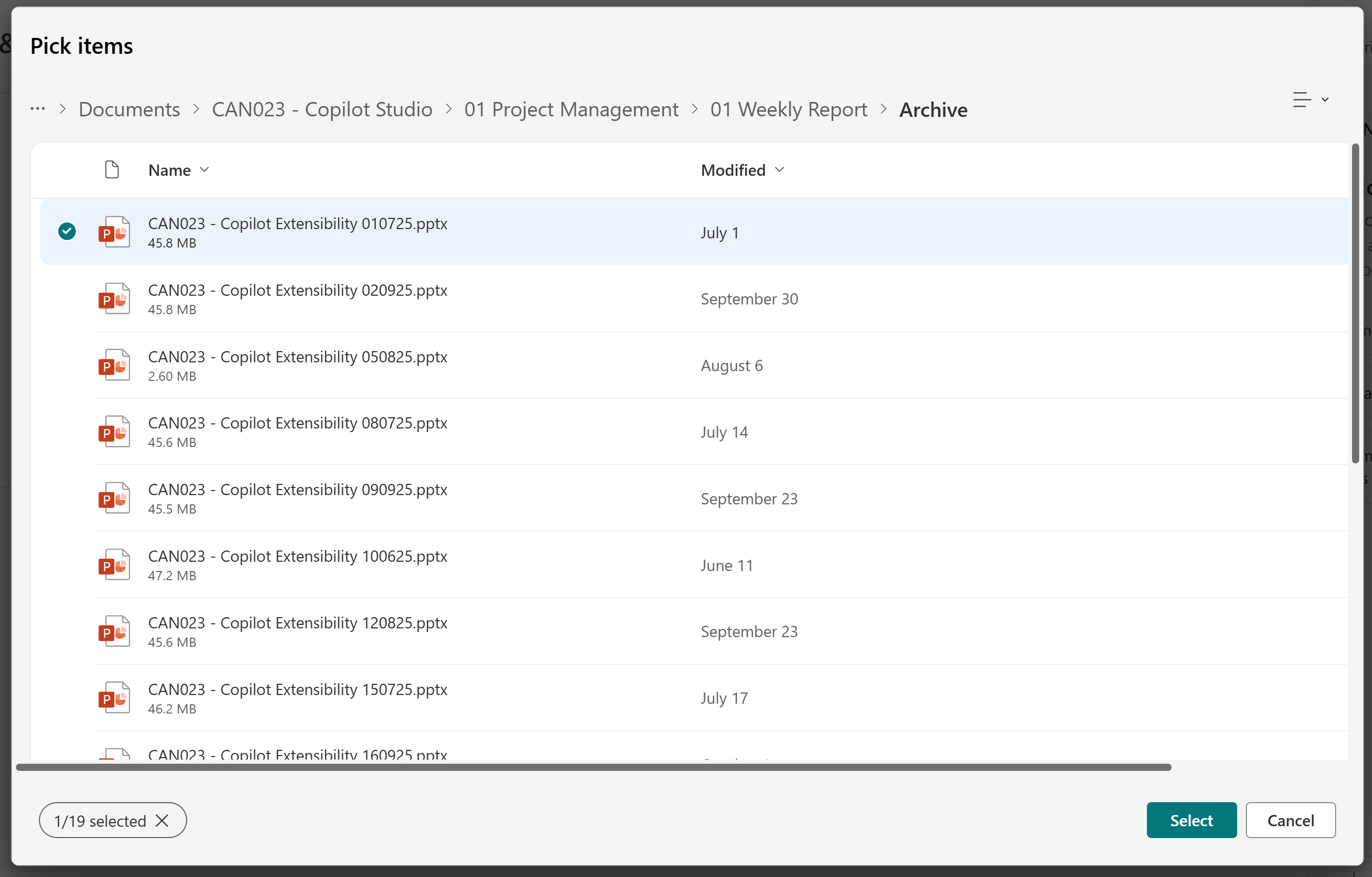
This is a known UI bug – the file selection screen limits you to 19. However, you can still upload all 20 files by reopening the file selection screen and adding the remaining knowledge source.
This issue can occur if the “Show to everyone in my org” option has already been selected prior to selecting “Show to my teammates and shared users”. To resolve the issue, you will need to remove the permissions automatically assigned to ‘Everyone in the organisation’, making sure not to select “Share with Organisation”. If you are attempting to share your Agent with more than one user, you must download the .zip package and provide it to your organisation Local Administrator who can assess it and submit it for publishing in the shared tenant through the central process.
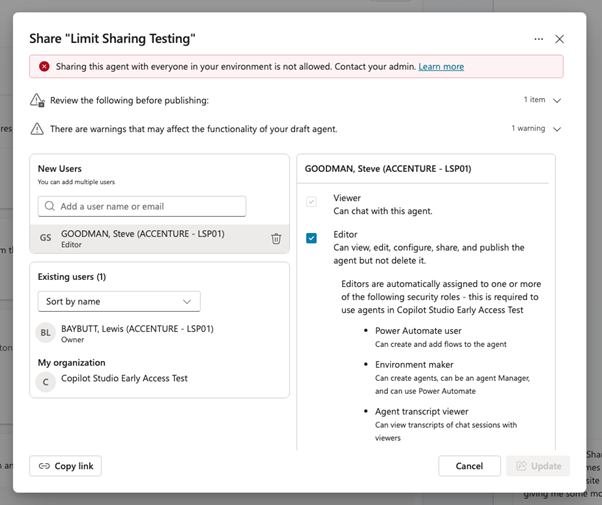
Example of Update button greyed out in the sharing window
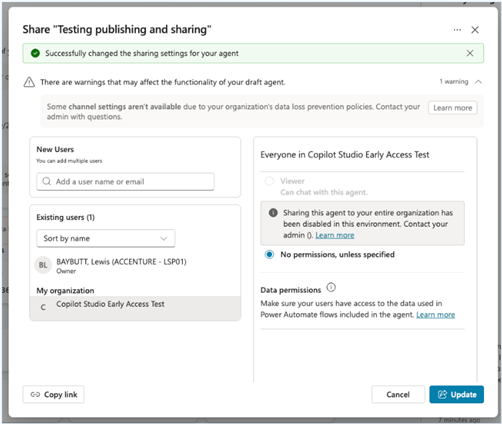
Removing organisation shared permissions from a Copilot Studio agent
If you are unable to publish the agent, make sure that you have selected at least one channel for sharing. Selecting a channel should allow you to publish your agent while disregarding the Data Loss Prevention (DLP) error message.
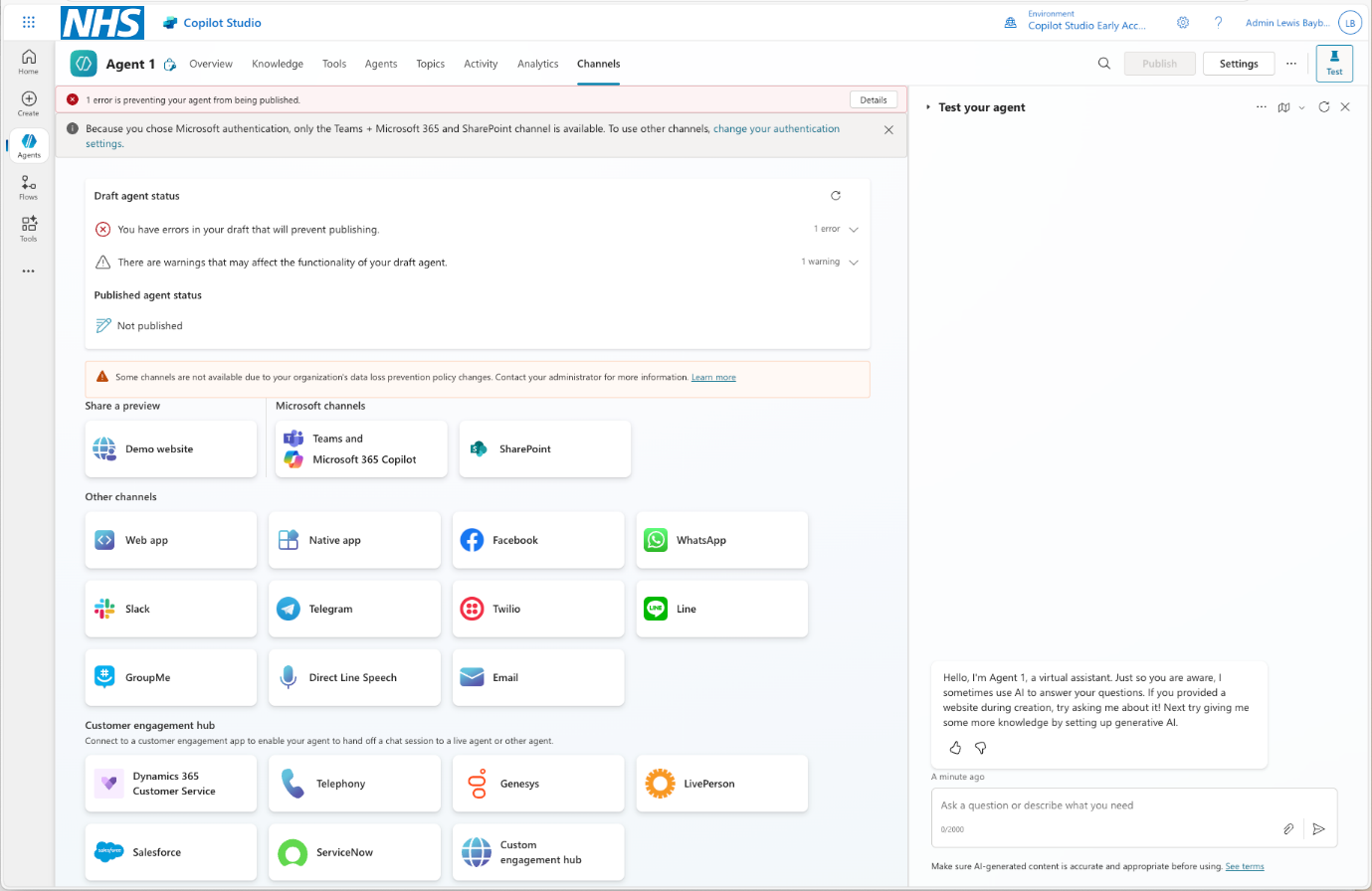
Example of error banner at top of screen, and error details in the Channels tab
It is advisable that makers should refer to their organisational guidelines to determine the best way to manage knowledge sources. There are some best practices that we recommend:
- For large sets of documents and other unstructured data, we recommend the use of SharePoint document libraries as knowledge sources, as they are effective for document retrieval and align with user permissions
- For complex solutions, with structured data that solely relates to your agent, Dataverse is included with your organisation’s managed environment for Copilot Studio. Dataverse has specific limits when used for this purpose with agents and we recommend keeping the architecture simple
- Group similar documents (e.g., all knowledge based articles) in a single SharePoint library to simplify management and allow clear reference in agent instructions
- Use natural language descriptors in agent instructions to clarify the purpose of each knowledge source
- Always ensure permissions are based on the user accessing the agent, and align with your organisation’s information governance requirements
Data entered into Copilot is stored within the NHS.net Connect environment, with data stored in the Copilot Studio managed environment for your organisation, in Microsoft’s UK South (London) and UK West (Durham & Cardiff) datacentres.
- Audit logs and interaction histories are kept with other Microsoft 365 and Azure logs within Purview and Sentinel. These are stored within the same UK South and UK West Microsoft datacentres
- Outside of user access to NHS.net Connect, data remains in UK-based data centres unless specific features (like web search or connectors to third-party services) are enabled, which may involve your agent crafting and sending a request such as a web search, which might access services outside of the UK
- Makers do not have access to user interaction logs within your organisation’s managed environment for Copilot Studio. Your organisation’s key contacts can request audit logs for the purposes of managing the environment
A set of approved connectors have undergone risk assessments and are enabled by default. However, due to the nature of AI-powered agents, we recommend ensuring that careful selection takes place of enabled tools or connectors, that these are scoped correctly and supported by clear structured prompts that direct the agent precisely.
The determination of what data you can use with a connector remains the responsibility of each organisation to conduct internal checks and ensure they are comfortable with how data is accessed or changed (i.e. Information Governance and Data Protection Impact Assessment). Copilot Agent building tools are provided strictly for administrative and business support purposes. Agents must not be used for any clinical activity, including informing or supporting clinical decision-making, direct patient care, or any activity requiring clinical judgement. Users must not develop, request, generate, or act upon agent outputs in any clinical context.
For additional connectors or functionality not currently enabled, a DLP exception request process is in place for assessment and enablement.
This is expected behaviour related to how data connections work in Copilot Studio. Whenever your agent uses knowledge sources, like SharePoint, databases, or any service you normally sign into with your Microsoft 365 credentials, the user running the agent must sign in with their own credentials. This ensures that all data access respects that user’s individual permissions and security context.
When developing an agent in Microsoft Copilot Studio, if you’re using the Tools functionality (previously called ‘Actions’), you should configure your agent to require users to authenticate to ensure their permissions and context are used to execute the Tool.
The sign-in and consent prompt users see is similar to Power Apps when connecting to data sources: users must give permission for the agent to make API calls on their behalf. This consent step lets users know the agent might send emails, post Teams messages, or access data using their credentials.
This sign-in and consent experience cannot be removed or streamlined. It’s a necessary security step to protect your organisation’s data.
Currently, Copilot Studio does not support explicit prioritisation of knowledge sources. You can try using natural language instructions to guide the agent on where to look based on the query, but there’s no built-in way to set fixed priorities (e.g., designate one source as P1, another as P2).
When building Copilot Studio agents, you can use Power Platform connectors. Agents must be licensed either through Copilot Credit packs or Microsoft 365 Copilot licenses. These are the only available options.
• If your agent uses standard or premium connectors within Copilot Studio, these are covered by licensing via M365 Copilot.
• For scenarios involving Power Automate flows integrated with agents (agent flows), licensing is covered under Copilot Credit packs, you don’t need separate Power Platform premium licenses.
• However, M365 Copilot licenses do not grant Power Automate usage rights; those come only with Copilot Credit packs. If your agents are appropriately licensed, you can use connectors without separately purchasing Power Platform premium licenses.
For support around the Copilot Extensibility service, please raise an O365 support ticket, specifying Copilot Agents as your application/component, or reach out to the NHS.net Connect Help Desk, citing Copilot Studio in your request.
| Last Reviewed Date | 14/10/2025 |
