
1. Article summary
This guide outlines how to manage the Copilot extensibility platform for organisations on the NHS.net Connect shared tenant. The Copilot extensibility platform includes all Copilot Agent building tools, including Copilot Studio Full, Copilot Studio Lite, M365 Agents Toolkit, and SharePoint agents.
This article provides clear guidelines for Local Administrators (LAs) on secure onboarding and ongoing management using Copilot Studio and related agent-building tools.
2. Understanding Copilot Extensibility on NHS.net Connect
Microsoft Copilot is Microsoft’s AI tool, and is available as an add-on to the Microsoft 365 suite. Microsoft 365 Copilot Chat has been enabled on the NHS.net Connect shared tenant for all users, supporting more efficient administrative work.
For organisations that have procured and provided users with Microsoft 365 Copilot licences, those users will be able to use certain Copilot features, enabling Copilot to offer Generative AI capabilities across key M365 data, such as SharePoint and Teams. Copilot Agents are Microsoft’s capability for extending Copilot beyond this, to interact with custom data sources and systems.
This how-to guide provides guidance to NHS.net Connect Local Administrators for managing Copilot Extensibility and Copilot Agents in their organisation, including enabling the building of Copilot Agents to support extensibility use cases.
Copilot Extensibility journey
There are several considerations for Local Administrators to keep in mind when approaching to Copilot Extensibility and agent building for the first time as an organisation.
These include, but are not limited to, understanding your technical readiness state as an organisation, considering a strategy for Copilot Agents, identifying a developer tool within the Copilot Extensibility toolkit, and defining a process for reviewing and publishing agents.
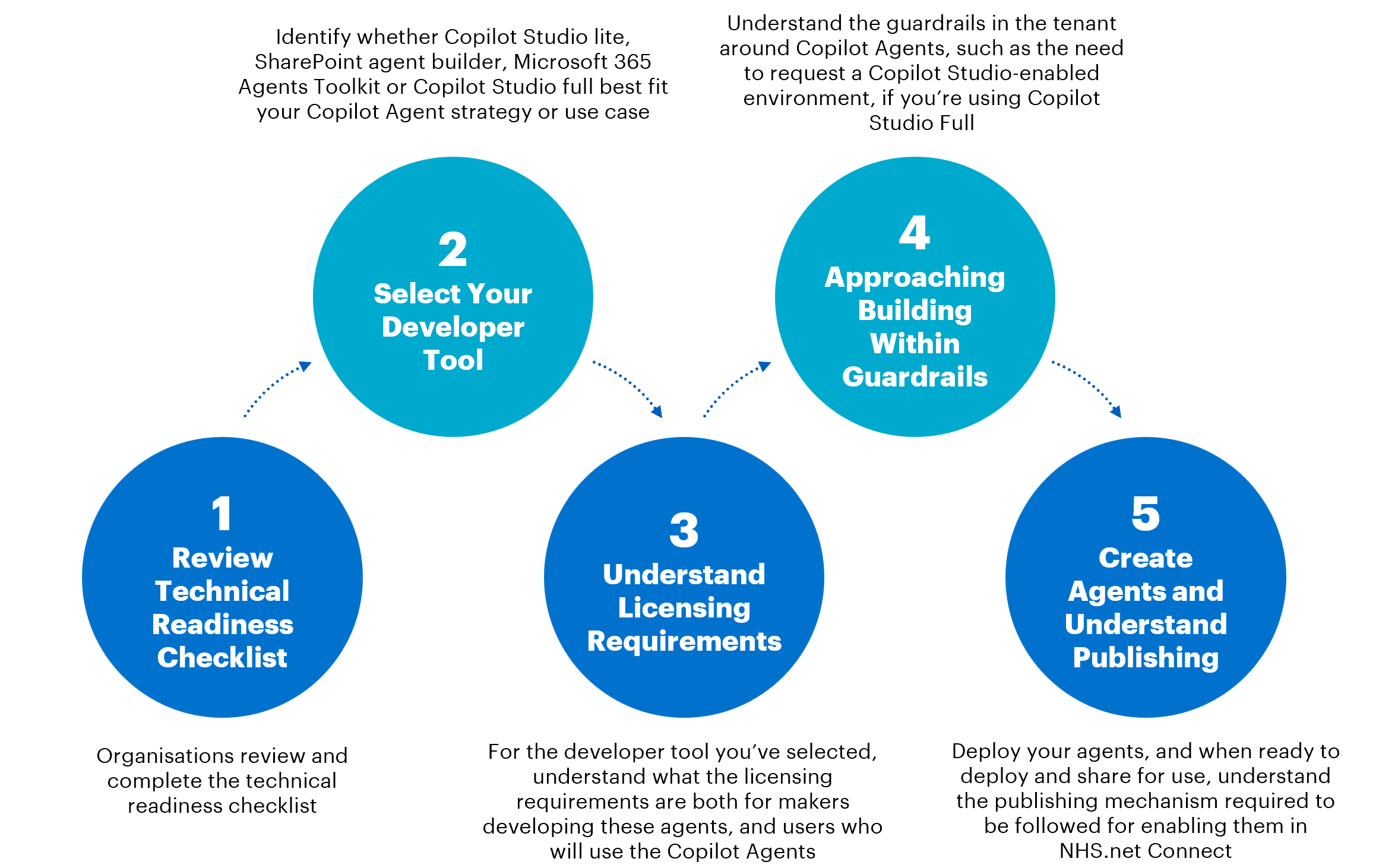
Step 1: Technical Readiness
Organisations must begin by reviewing and completing the technical readiness checklist for Copilot Agents (extensibility).
| 01 | Adequate in-house technical resources (e.g. Local Administrators (LAs), technical managers) will be required to support with any necessary local technical configuration changes. |
| 02 | Each organisation onboarding onto Copilot Studio will need to have acquired a set of Microsoft Copilot Studio User Licences and at least one Copilot Credit pack (Product Name reference: Microsoft Copilot Studio) i.e. from that organisation’s Microsoft reseller or licensing specialist resource. |
| 03 | Only organisations on the enhanced service are in scope to be provisioned with Copilot Studio licensing and environments. All participating users must be Enhanced Service users. |
| 04 | All participating users will be encouraged to be licensed with M365 Apps for Enterprise if using Copilot in installed applications is a requirement. This is for user personas rather than the maker persona. |
| 05 | All participating users must have enrolled for Multi-Factor Authentication (MFA). |
| 06 | All participating users should have securely managed devices, either via NHS.net Connect Intune or a local device management solution. |
| 07 | Each organisation will be auto onboarded into the Global Sensitivity Label Policy to access the sensitivity labels created for managing Copilot usage. |
| 08 | Each organisation will be encouraged to start labelling their SharePoint sites, prioritising those with highly sensitive/confidential information. |
| 09 | Through local organisation communication and messaging, all participating users should be required to use sensitivity labels for their existing and new content and review access & permissions. |
| 10 | Each organisation should review the following resources to input into their own: 1.Data Protection Impact Assessment (DPIA) which includes Risk information, 2. Hazard Log and Clinical Safety Case Report 3.Organisation Acceptable Use Policy (AUP), 4. Responsible AI Guidance via support.nhs.net |
| 11 | Each organisation must ready a security group for the management of Copilot Studio-enabled environment membership. |
Step 2: Select your developer tool
The next step is to determine which Copilot Extensibility tool will be used to build your Copilot Agent. To understand how to proceed with building out your use case, begin by understanding the .
Step 3: Understand the licensing requirements
Organisations developing a Copilot Agent should also understand the licensing requirements for both the agent and the chosen developer tool. Organisations should review and understand licensing options for Copilot Agents, taking note of specific differences in licensing for .
Step 4: Approaching building within guardrails
Once a tool has been chosen and licensing requirements are understood, organisations should set up their chosen tool and licensing. For Copilot Studio Full, there are additional guardrails and activities associated with this, which are listed in the Onboarding Guide for Copilot Studio.
Step 5: Create Agents and understand publishing
When building Copilot Agents, organisations need to understand the governance controls in place to ensure secure and compliant agent creation, sharing, and use. Organisations are encouraged to use supporting resources on Viva Learning and Microsoft guidance to build Copilot Agents.
Copilot Agents capability overview
There are two types of Copilot Agents enabled for use on NHS.net Connect. These are declarative agents and custom engine agents (low code).
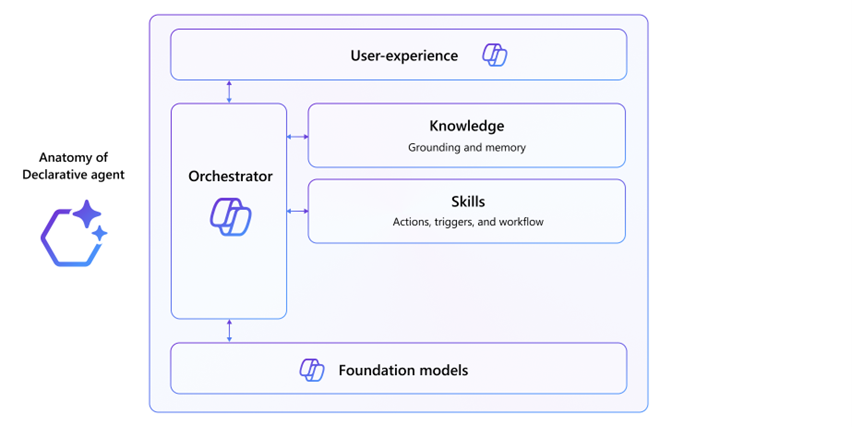
Declarative agents enable you to configure Copilot for specific scenarios by adding custom instructions, additional knowledge and actions to allow AI-augmented business processes. These are always used within Microsoft 365 Copilot or Copilot Chat and use the Copilot foundation models and orchestrator.
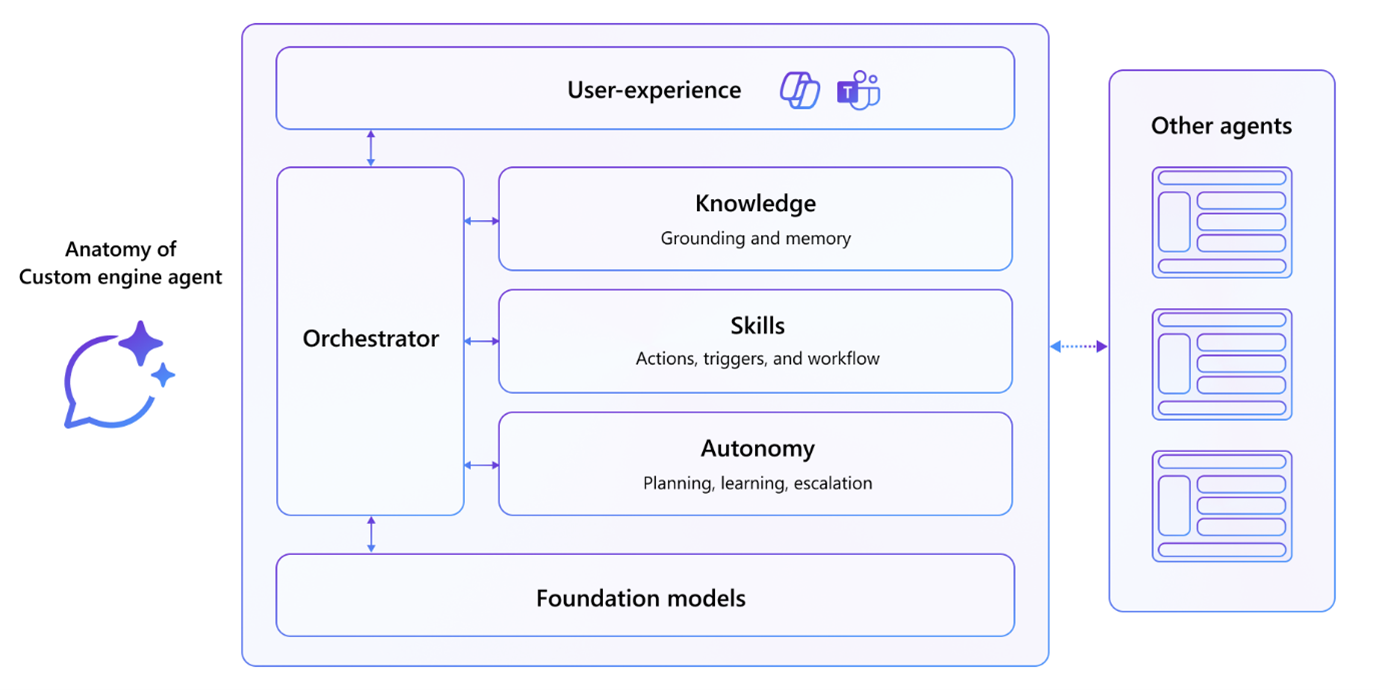
Custom engine agents are fully customised AI assistants built on the Microsoft Copilot platform, useful for scenarios that require more complex workflows, orchestration or specific language models. Building a custom engine agent allows developers to add richer functionality to an agent such as the ability to integrate with AI Builder and other Power Platform features, when building in Copilot Studio Full.
Developer tools available for building agents in the NHS.net Connect tenant
Microsoft provide several developer platforms purpose-built for building Copilot Agents, supporting both declarative and custom engine agents. Each of these tools has different agent-building capabilities.
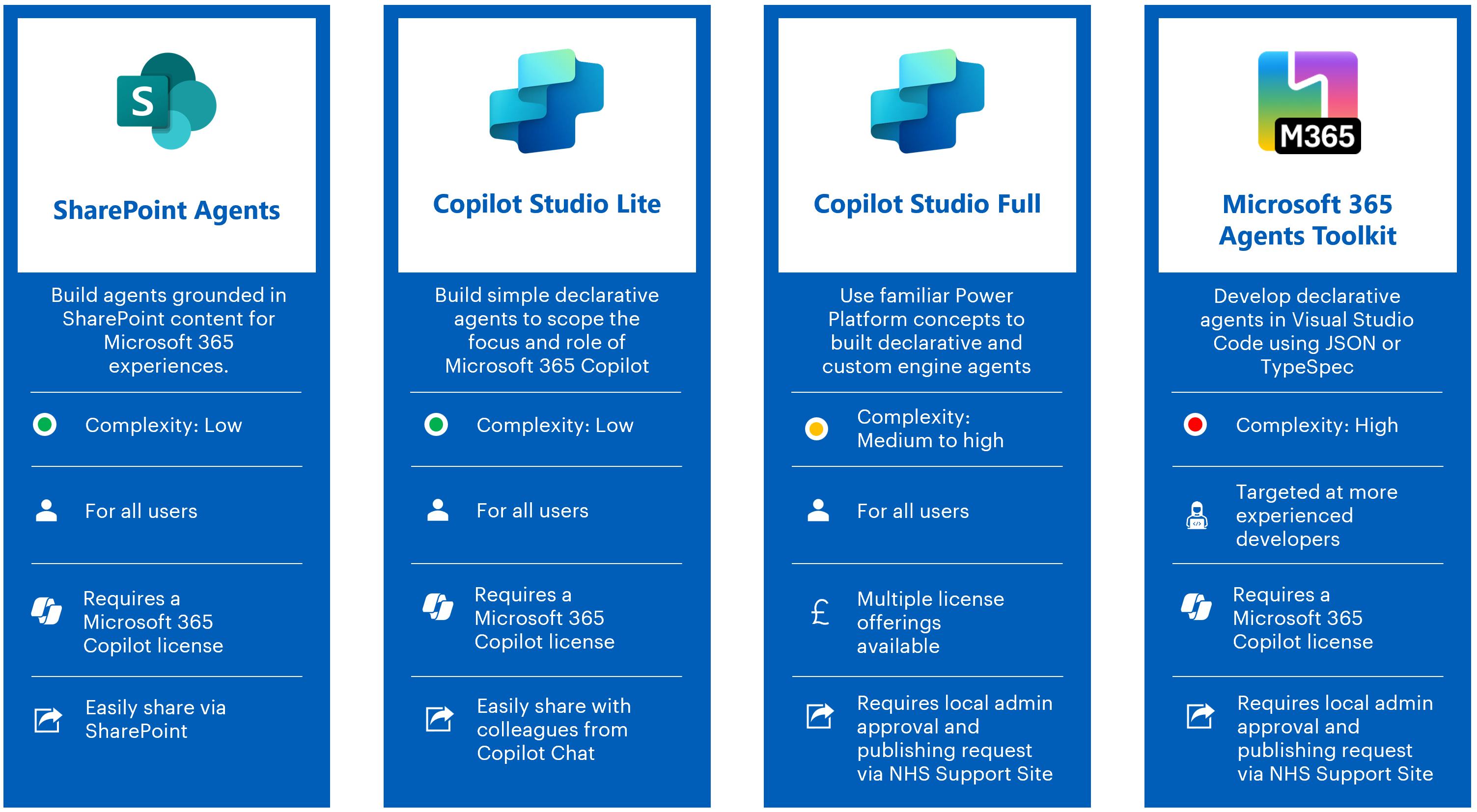
For a more detailed breakdown of the different tools, please refer to the below points:
- Organisations can use SharePoint Agents or Copilot Studio Lite to build simple agents grounded in work / enterprise data that they have access to, for use in Microsoft 365 experiences. Both options require users of those agents to have a Microsoft 365 Copilot licence.
- Copilot Studio Full can be used to build both simple and complex agents, with the ability to make both declarative and custom engine agents. Building custom engine agents in Copilot Studio Full allows greater flexibility in where agents can be deployed, allowing for use in Teams and SharePoint, in addition to Microsoft 365 Copilot Chat. Custom engine agents also offer further development flexibility through their richer set of features, such as the ability to use topics for more controlled agent behaviour.
- The Microsoft 365 Agents Toolkit is a capability designed for developers who are more familiar with working with code, JSON, and Visual Studio Code as an integrated development environment (IDE).
Organisations should select their developer tool with an understanding of the broader licensing and governance concepts surrounding each tool for NHS.net Connect.
Approaching licensing for Copilot Agents
There are several considerations for organisations to make for licensing Copilot Agents, from both a development and usage perspective.
For further detail on how Copilot Agents are licensed by Microsoft, the following Microsoft resources may be helpful. When referring to Microsoft resources, please keep in mind that there will be controls and processes specific to the NHS.net Connect Tenant. While this article details NHS.net Connect specific configuration for the Copilot Extensibility service, for wider guidance on NHS.net Connect specific processes (i.e. access to external users), refer to their respective support site articles.
- ‘Billing rates and credit scenarios’ helps to understand how different features use different volumes of credits per prompt or activity
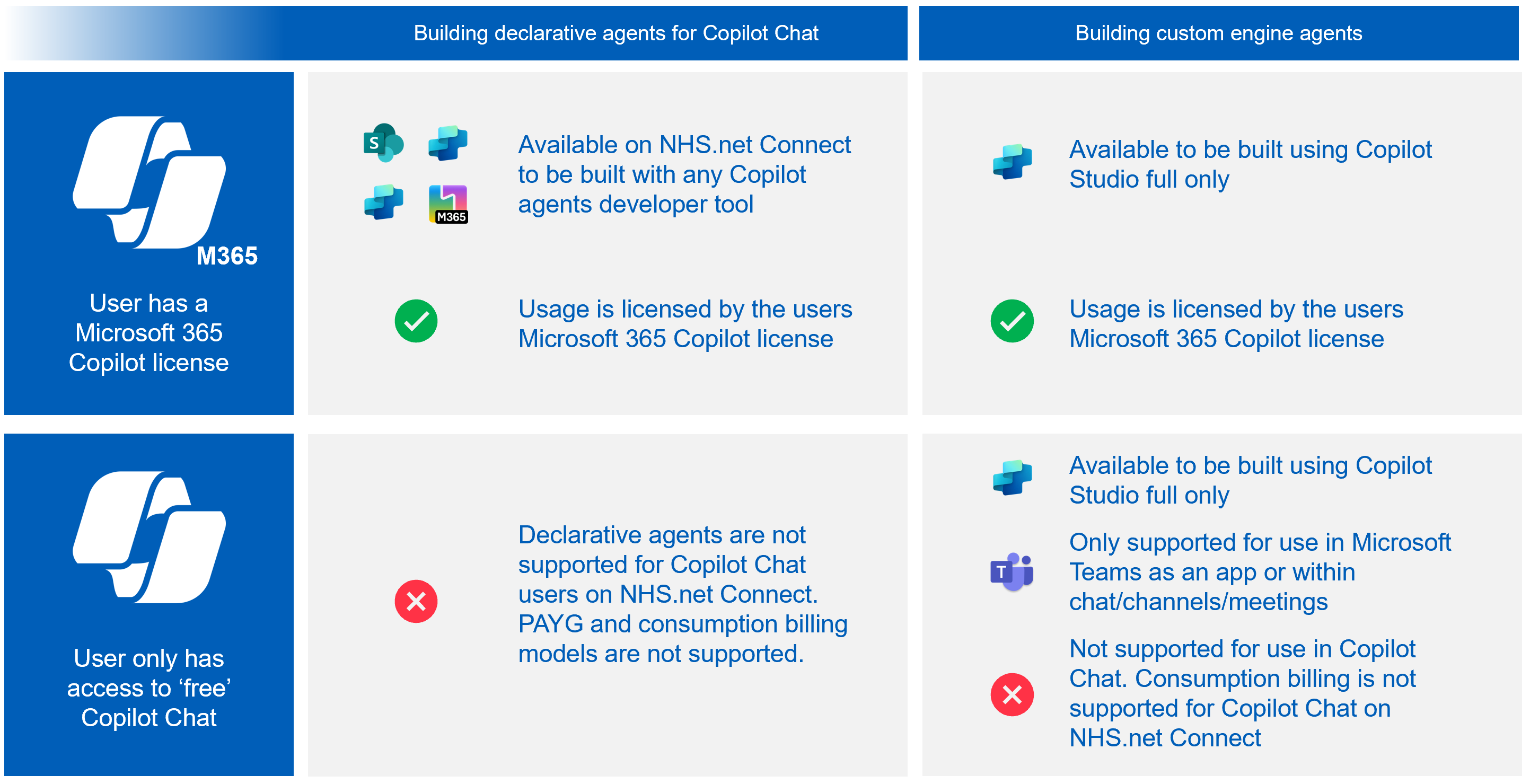
- Licensing and cost considerations for Copilot extensibility options help to understand how Microsoft 365 Copilot features can be licensed. It should be noted that PAYG options are not available for NHS.net Connect, and the use of Copilot Agents is not supported for users without a M365 Copilot License
- The Copilot Studio licensing guide supports developers of Copilot Studio agents to understand the licensing considerations involved with building agents using this developer tool
Licensing strategy for NHS.net Connect
Organisations should be aware of the following elements of the Copilot Agents licensing strategy for the NHS.net Connect tenant.
End-User Licensing for SharePoint Agents, Copilot Studio Lite and M365 Agents Toolkit
To access published SharePoint Agents or declarative agents built using either Copilot Studio Lite or the Microsoft 365 Agents Toolkit, end-users must have a Microsoft 365 Copilot licence to see and access the agent. For further information on getting a Microsoft 365 Copilot license and using Copilot Chat, please visit the support pages.
End-User Licensing for Copilot Studio Full
To access published Agents (both declarative and custom engine agents) built using Microsoft Copilot Studio Full and published in Copilot Chat, end-users must have a Microsoft 365 Copilot licence.
Where a custom engine agent has been published to Teams, alternative licensing is required in the form of Copilot credit packs assigned to the Copilot Studio-enabled environment. These Agents can be accessed by those with and without a Microsoft 365 Copilot license.
End-User Licensing Summary
The matrix below can be used to support decisions on whether to procure Microsoft 365 Copilot licenses or Copilot Studio licensing for custom engine agents in Microsoft Teams.
3. Understanding tenant governance for Copilot Agents
Onboarding to sensitivity labels
We highly recommend your organisation opts into the Global Sensitivity Label Policy before you commit to onboarding any M365 Copilot licenses or Copilot Studio licenses. If you are not already enrolled, your organisation will be automatically enrolled as part of the licence onboarding process.
To block M365 Copilot from accessing any M365 content, it must be labelled with one of the ‘Official Sensitive’ labels. For further information, please refer to the support article on Sensitivity Labels and how to enrol.
Notices about access to developer tools
Local Administrators should understand the following important notes regarding access to different developer tools for Copilot Agents.
Copilot Studio Full requires environment provisioning for developer access – Anyone, including Local Administrators, who wishes to build agents using Copilot Studio Full must have access to a Copilot Studio-enabled environment. Local Administrators can request the creation of Copilot Studio-enabled environments.
General Use of Copilot Studio Lite – There are no technical guardrails or restrictions possible to implement around colleagues creating agents using Copilot Studio Lite, though these agents are simple in their ability to only query content Microsoft 365 Copilot or Copilot Chat already has access to.
Onboarding your organisation to work with Copilot Studio for the first time
The diagram below outlines the key steps to onboard your organisation to work with Copilot Studio for the first time.
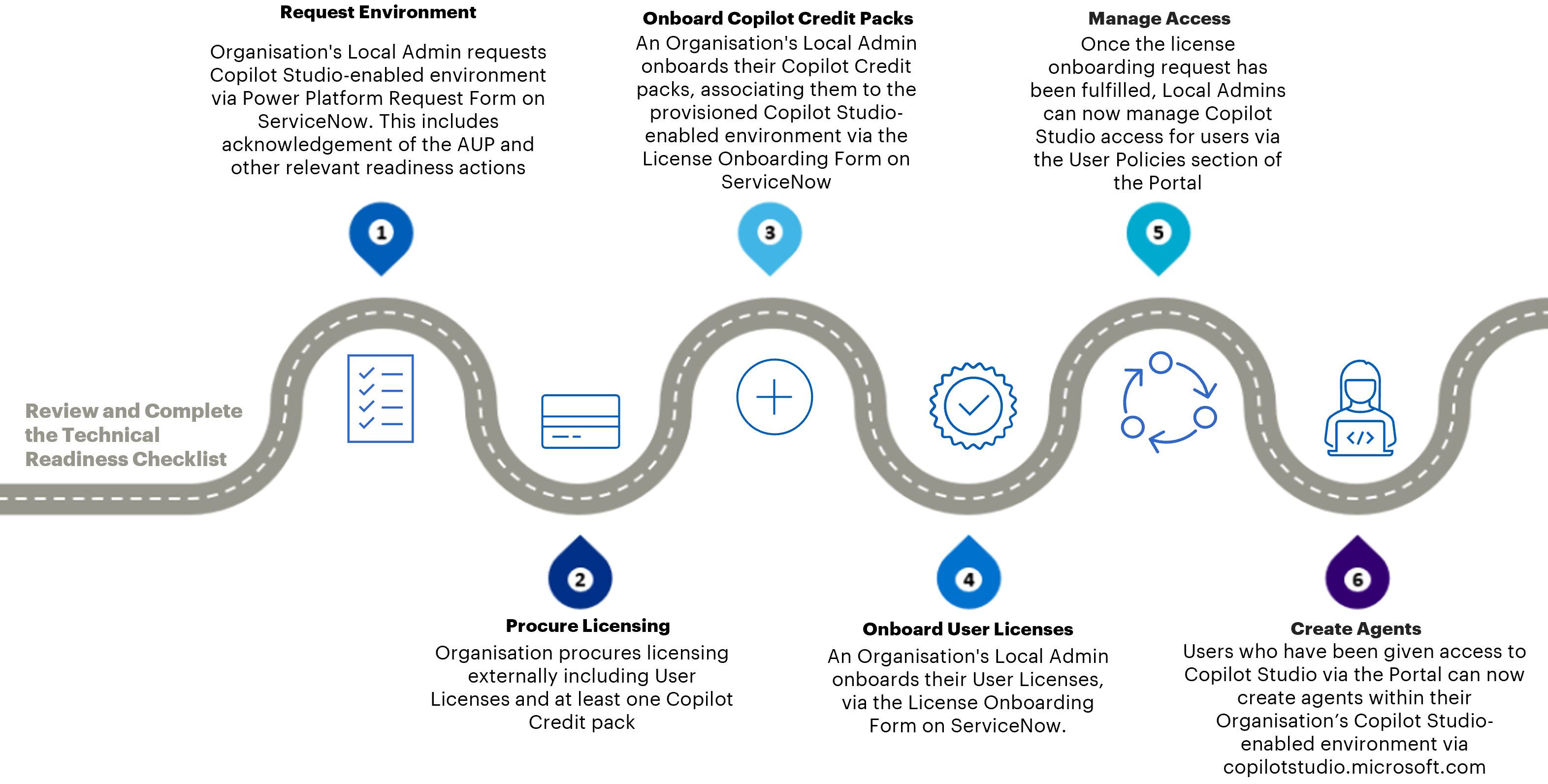
For more information on the technical pre-requisites and the onboarding process for Copilot Studio, refer to the Onboarding to Copilot Studio Article.
4. Publishing and Sharing Agents
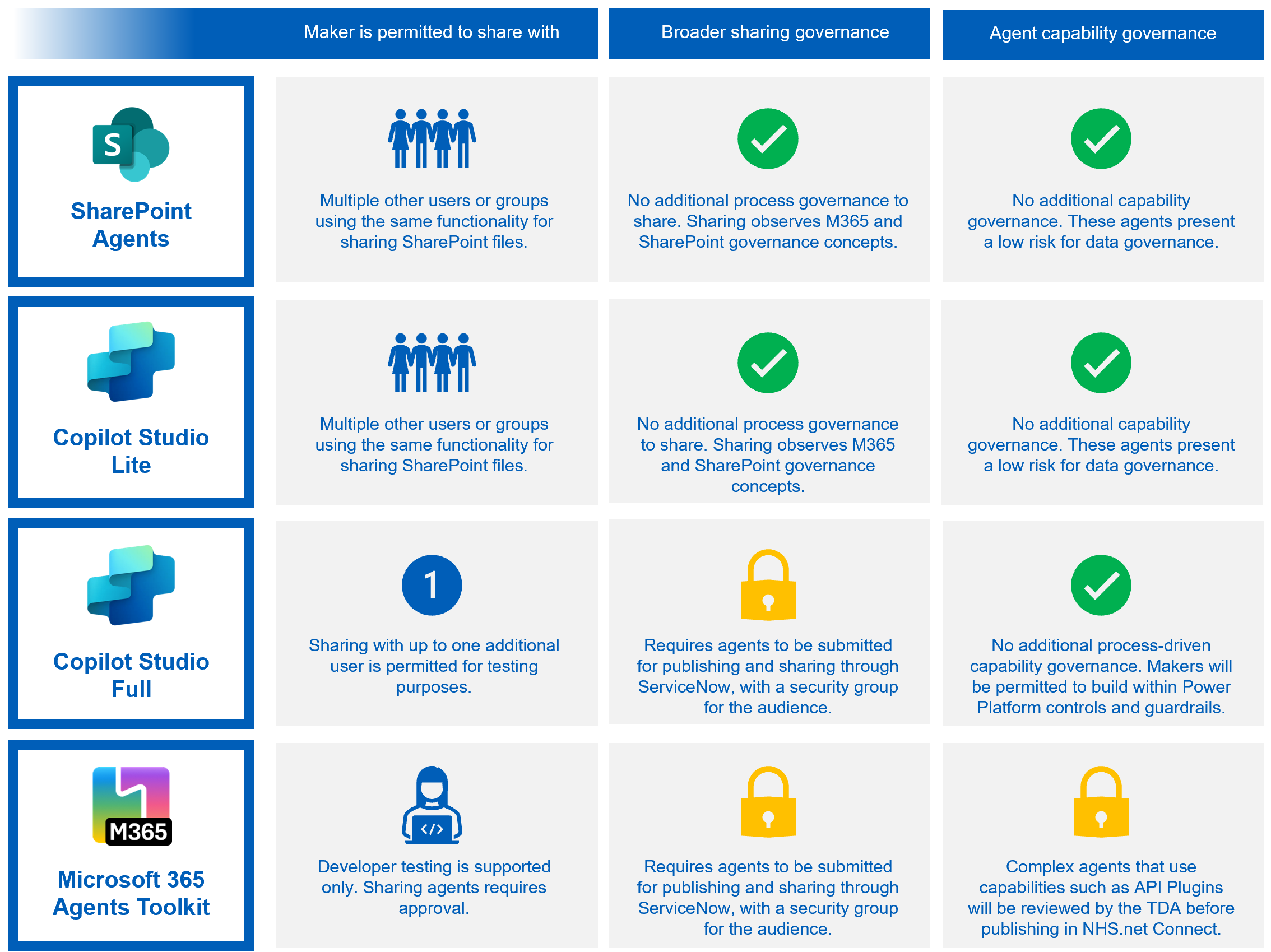
The process for agent publishing and sharing follows the principles outlined below.
- Agents built using SharePoint Agents or Copilot Studio Lite can be shared by the user who created those agents from within the interface itself. These agents are only able to reason over content that Copilot already has access to, respecting user permissions
- Agents built in the Microsoft 365 Agents Toolkit can be provisioned by their developer from Visual Studio Code for testing in Microsoft 365 Copilot. To share them with a broader audience, they must go through a centralised publishing and sharing process before being usable on NHS.net Connect tenant, detailed in the section below
- Agents built in Copilot Studio Full can be shared with up to one additional user for testing purposes. To share them with a broader audience, they must undergo a centralised publishing and sharing process before being usable on NHS.net Connect tenant, detailed in the section below
Publishing for Copilot Studio and Agents Toolkit agents
To publish agents created using Copilot Studio or Agents Toolkit into Microsoft 365 Copilot and Teams, organisations must upload the agent package (.zip) and submit the details needed to publish the agent via the Stores Request HSS form in ServiceNow.
Altering the shared audience of your Agent
To modify who has access to an agent deployed to SharePoint, makers can either update the permissions of the SharePoint site that the agent is deployed to, or update the permissions of the .agent file in a similar way to how files permissions are managed.
When publishing an agent to Teams or M365 Copilot through the agent publishing process, the requester must provide a security group for the audience who should have access. If you later want to change who can access the agent, you can update the membership of that security group as a group owner.
5. Understanding Copilot Studio-enabled environments
Introduction to Copilot Studio Full
Copilot Studio Full is a low-code development platform that enables organisations to build, customise, and deploy AI-powered copilots tailored to their business needs. It allows makers to design conversational logic using topics, triggers, and generative AI, making it accessible to both technical and non-technical users. These copilots can connect to a wide range of data sources – including Microsoft Dataverse, SharePoint, and external APIs – allowing them to retrieve, process, and act on enterprise data in real time.
A key strength of Copilot Studio Full lies in its governance and environment management capabilities:
- Environments: These provide isolated workspaces, helping teams manage lifecycle stages and maintain separation of concerns. The agents you create (as well as associated apps and flows) are stored in an environment
- Data Loss Prevention (DLP) policies: These enforce data governance by controlling how data can flow between connectors, so that sensitive information is not inadvertently exposed
- Role-Based Access Control: This enforces that only authorised users can modify or publish copilots, supporting secure collaboration across teams
Copilot Studio Full is a component of Microsoft Power Platform and integrates and shares components with Power Automate and Power Apps, enabling end-to-end workflow automation. It supports Application Lifecycle Management (ALM) through solutions, allowing for version control and deployment across environments and CI/CD pipelines. Built-in telemetry and analytics provide insights into usage and performance, helping teams iterate and improve their copilots over time.
In addition to supporting declarative agents built through the visual interface, Copilot Studio Full also allows the creation of custom engine agents for more advanced or specialised scenarios. For detailed guidance on how to build agents using Copilot Studio Full, refer to the How to Guide for Agent Building and official Microsoft Learn materials.
Copilot Studio-enabled environments
Within Power Platform, ‘Environments’ are the building blocks of configuration and data storage. Copilot agents are built within an environment and are managed and controlled by that environment’s configuration. Environments only play a role for Copilot Studio Agents; they are not relevant to SharePoint Agents or M365 Agent Toolkit Agents.
To use Copilot Studio Full safely and effectively, your organisation will need to create dedicated environments that are enabled as Managed Environments. These environments are designed to support Copilot Studio while maintaining data protection controls.
Here’s how it works:
- Copilot Studio environments have their own Data Loss Prevention (DLP) policies, separate from those used in standard Power Platform environments
- These environments do not allow non-business data connectors. While non-business data connectors available for Power Apps and Power Automate will remain scoped to those platforms, they will be blocked for use with Copilot Studio Full
- This setup creates two distinct environment categories within the tenant:
-
- Power Apps and Power Automate only environments – Basic and Advanced DLPs
- Copilot Studio enabled environments – Business Restricted Basic and Advanced DLPs
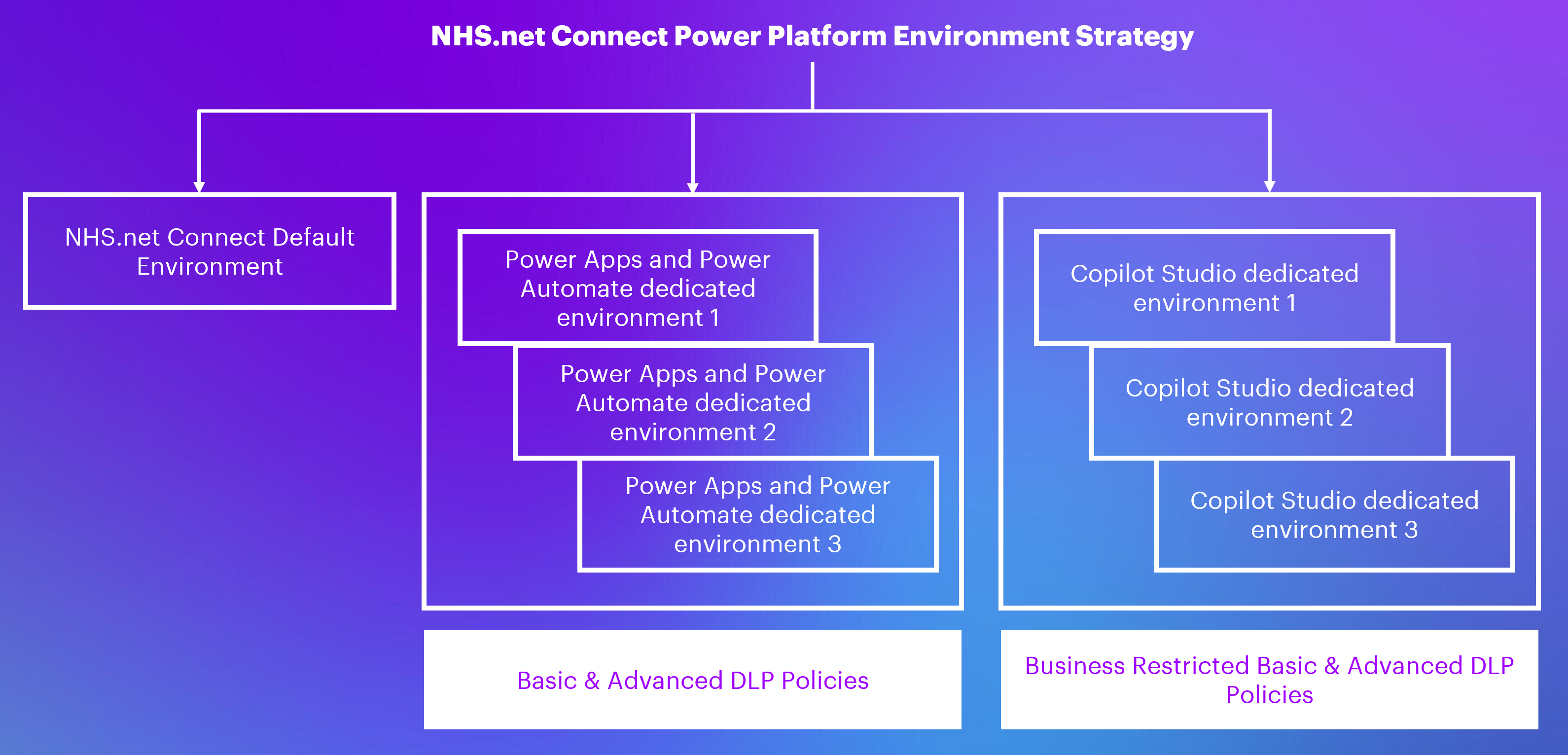
NHS.net Connect Power Platform Environment Strategy
Power Apps and Power Automate are available for use in Copilot Studio-enabled environments. As managed environments are enabled in Copilot Studio-enabled environments, any use of Power Apps and Power Automate within these environments will require the allocation of premium licenses for users.
Copilot Studio-enabled environments require users to be licensed when using solutions hosted in the environments. Copilot Studio agents must be licensed using Copilot Credit Packs, where users do not have a Microsoft 365 Copilot licence. Some features, like agent flows or Power Automate actions triggered by a Copilot Studio agent, use credit capacity rather than needing a separate Power Automate licence. Credit scenarios are described in Billing Rates and Management.
Use of the default environment in NHS.net Connect
Copilot Studio agents are built within dedicated Copilot Studio-enabled environments. It is important to ensure that makers do not attempt to create agents in the default environment, or existing Power Platform environments as this can result in technical errors from disabled functionality, and in the deletion of incompliant agents. Each organisation owns its environment and defines how it is used. Organisations can request multiple environments to meet their specific needs.
As a Local Administrator, you are responsible for ensuring your organisation complies with the Acceptable Use Policy (AUP) and relevant guidance. Organisations are required to conduct risk assessments before enabling Copilot Studio, and to manage these risks by ensuring all Copilot Studio agents complete local governance, security, and clinical safety evaluations. Additionally, any new or updated agents should go through the same assessment process.
Environment naming convention
The naming convention used for Copilot Studio environments is as follows:
| Template |
| <Org> – <ODS> – <Name> CS <Environment Type> |
The template values are defined as follows:
| Template Value | Description |
| <Org> | Is the name of the organisation that owns the environment |
| <ODS> | Is the ODS Code of the organisation that owns the environment |
| <Name> | is the name given to the environment by the organisations e.g. HR Test |
| CS | CS is a static string to denote that this is a Copilot Studio Environment |
| <Environment Type> | is the definition of environment type e.g. Sandbox, Prod, Developer |
6. Licensing for Copilot Studio
Enabling of licenses for Copilot within the NHS.net Connect tenant requires Per-user Licensing as well as Copilot Credit Pack licensing for each organisation.
The specific Product Name for these two licenses is listed in the table below. When acquiring licensing, make sure that the Product Name matches those in the table below to avoid acquiring the incorrect licensing as licenses not detailed below are incompatible for onboarding on to the NHS.net Connect tenant.
| License Type | Product Name |
| User License | Microsoft Copilot Studio User License |
| Copilot Credit Pack | Microsoft Copilot Studio |
Per-User Licensing
- Microsoft Copilot Studio User licenses are available at no cost but still require procuring from your Licence Service Provider (LSP)
- Once procured and onboarded, these licenses can be managed in the Portal similar to the management of other licenses within the NHS.net Connect tenant
Tenant Licensing (Copilot Credit Packs)
Capacity-Based Licensing must be onboarded to specific Copilot Studio-enabled environments. This allows the credits to fund the environments that it is allocated to.
Details regarding Copilot Credit pack utilisation are documented by Microsoft.
Onboarding Licenses
For instructions on how to onboard Per User/Tenant licensing process, please refer to Onboarding to Copilot Studio article.
To re-distribute or move Copilot Credit packs / add-on licensing between existing Copilot Studio-enabled environments:
- Navigate to Raise a Request area within the Helpdesk Self-Service page
- Under Power Platform Request Type, select ‘Allocate / Unallocate / Move AI Builder credits or Copilot Credit packs’
- Complete the fields within the form and submit the request
7. Control and management
Environment Groups and Rules
Several environment-level feature and compliance controls are configured at the tenant level. These controls are enforced using Environment Groups which is a feature of Managed Environments – specifically, all Copilot Studio-enabled environments are part of a single Environment Group called “Copilot Studio enabled environments”. As a Local Administrator, you’ll find that settings that have been configured on this level are locked and you are unable to adjust these.
Any settings that are not configured at the Environment Group level are open for you to manage within your own environment. Unconfigured settings are not listed in the below table and can be set on a per-environment basis.
| Rule | Configuration |
| Accessing transcripts from conversations in Copilot Studio agents | Both capabilities disabled |
| Advanced connector policies (preview) | Unconfigured – can be controlled per environment if required. |
| AI prompts | Enabled |
| AI-generated descriptions (preview) | Enabled |
| AI-powered Copilot features | Unconfigured – can be controlled per environment if required. |
| Backup retention | 28 days – This is the maximum number that can be set. |
| Default deployment pipeline (preview) | Unconfigured – can be controlled per environment if required. |
| Generative AI settings | Move data across regions (Generative AI Features) – Enabled
Terms of use for Bing Search – Status to be determined. Remaining unconfigured. |
| IP Firewall setting | Unconfigured. This is relevant to Dataverse, not Copilot Studio. This is not something feasible to configure across organisations at this environment group scope. This can be configured by organisations at their decided scope. |
| Maker welcome content | Contain links to information that supports makers building agents such as governance control documentation and more. |
| Power Apps component framework for canvas apps | Disabled. |
| Release channel | Unconfigured – can be controlled per environment if required. |
| Sharing agents with Editor permissions | Enabled |
| Sharing agents with Viewer permissions | Enabled, and restricted to 1 user only |
| Sharing controls for canvas apps | Don’t set limits (default) |
| Sharing controls for solution-aware cloud flows | Let people share solution-aware cloud flows (enabled) |
| Solution checker enforcement | Unconfigured – can be controlled per environment if required. |
| Unmanaged customisations | Unconfigured – can be controlled per environment if required. |
| Usage insights | Disabled – This is a feature of Managed Environments to provide usage information on the Dataverse to PP Administrators, it is not relevant to Agents or Copilot, so is currently disabled. |
Data Loss Policies (DLP) Policies
Copilot Studio agents can connect to third-party applications to trigger actions. This is controlled by Data Loss Prevention (DLP) policies that apply to the environment your agent is built in.
DLP policies for agents are similar to existing Power Platform DLP policies. These policies control which connectors (for example Outlook, SharePoint.) an agent can use. You can choose from basic or advanced policies when requesting a new environment.
By default, all the connectors not explicitly mentioned are blocked.
The DLP policies for can be found on the Copilot Studio DLP Policy support article. For more information on a specific Connector and its functionality, please refer to the Microsoft Guidance on connectors.
Environment DLP Policy Exceptions
If your organisation needs to use connectors that are blocked by DLP policies, Local Administrators can submit an exception request for assessment. When making a request, the LA must confirm they’ve performed any cybersecurity and compliance checks that their NHS organisation requires and provide evidence of this.
Because exceptions are applied at the environment level, any maker with access to that environment will be able to use the enabled functionality. It is your organisation’s responsibility to update your own risk log, DPIA, and any other required governance documents, and to actively manage the use of these connectors in both existing and new agents.
Benefits of this approach:
- LAs can request and oversee exceptions up-front, supported by technical context during licensing and enablement
- Flexibility is granted in return for the LA and organisation taking shared responsibility for managing and monitoring exceptions
- All requests for autonomous agent functionality are subject to assessment
Autonomous agent enablement will always go through a formal review by the Technical Design Authority (TDA). The assessment criteria are reviewed and updated regularly based on evolving risks.
Local Administrators must consider the following when requesting for Autonomous agents to be enabled in a Copilot Studio-enabled environment, and when managing this kind of environment:
- Autonomous agents introduce new risks to your organisation’s use of Copilot Studio as a service, in particular concerning data exfiltration. It is your responsibility to conduct your own risk assessment prior to submitting a request, and to receive the necessary local approvals
- The risks of using autonomous agents increase when, for example, they can be triggered by external emails, when their responsibilities are not clearly limited, when they have access to sensitive or confidential information, or when they have permission to create or edit data sets.
- Once turned on, all makers with access to the environment cannot be technically prevented from creating autonomous agents. It is recommended to establish a system for the review of use cases which may involve autonomous agents to avoid high risk autonomous agents from being developed and published
- Autonomous agents are licensed using Copilot Credit packs associated with your environment
Exceptions for M365 Agents Toolkit declarative agents are managed through the submission process for these agents but leverage the approved exceptions for Copilot Studio Managed Environments. For example, if https://safe.gov/site is approved for usage with Copilot Studio as an exception, then it should not need to undergo assessment for use with a M365 Agents Toolkit declarative agent.
To raise a request for DLP exceptions:
- LAs navigate to the Raise a Request area within the Helpdesk Self-Service page
- Navigate to Power Platform Request form
- Under Power Platform Request Type, select ‘Request a Data Loss Prevention (DLP) Policy exception’. Under ‘Environment Type’ select ‘Copilot Studio-Enabled Environment’
- Complete the fields within the form and submit the request
Security Group
Security groups allow an organisation’s Local Administrator (LA) to control which licensed users can be a member of a particular environment. It is the organisation’s LAs responsibility to manage and maintain their organisation’s security group. Visit the support pages to learn more about managing Security Groups.
Role Based Access Control (RBAC)
Role-Based Access Control (RBAC) is a security model that assigns permissions to users based on their roles within an organisation. This ensures that users only have access to the data and tools that they are authorised to use, reducing the risk of over-permission and unauthorised access and applying least privilege principle.
The following table provides an overview of the permissions assigned to the standard Copilot Studio roles.
| Role | Create Agents | Edit Agents | Submit for Publication | Manage Environments | Access Published Agents |
| Local Administrator | Yes | Yes | Yes | Yes | Yes |
| Maker | Yes | Yes | No | No | Yes |
| End-User | No | No | No | No | Yes |
Local Administrators of the organisations have System Administration access to Power Platform which allows them to create and run applications and view analytics.
| Security Role | Scenario for application |
| Environment Maker | Default role applied to pilot users for building Copilot Studio agents. |
| System Customiser | Elevated maker role applied to pilot users on an exception basis when an issue is raised which requires this role for resolution. Example: user cannot create Dataverse tables. |
| System Administrator | Elevated privileges for the management of the environment. |
During environment provisioning, the environment is scoped to the group specified in the request, and a small number of system administrators from your organisation are assigned. Typically, you’ll assign the Environment Maker security role to Copilot developers, enabling them to create objects such as agents and other logic.
Data residency
In line with data residency requirements for Critical National Infrastructure (CNI), the NHS.net Connect Microsoft 365 shared tenant is hosted within the United Kingdom. Copilot Studio services operate within the Microsoft 365 UK Sovereign Cloud.
Copilot processing primarily uses the UK Azure OpenAI Service for prompt handling and generation. However, in certain scenarios, such as service fallback or capacity management the processing may occur in EU-based data centres. User prompts and responses are not solely stored in the user’s mailbox; depending on the specific Copilot workflow and integration points, additional storage locations within the Microsoft 365 ecosystem may be used.
Additionally, when Bing Search is invoked as part of Copilot functionality under the ‘Knowledge source with public websites and data in Copilot Studio’ connector, a limited excerpt of data in the form of a generated search query may be sent to and processed in the United States. Further details around data processing for Bing Search are documented by Microsoft here. Features that rely on Bing Search such as public websites as a knowledge source are enabled. LAs should direct makers to review the existing guidance on risksbefore using these features.
For more information on where different M365 services are hosted for NHS.net Connect visit – Data Retention and Information Management Policy – Office 365 – NHSmail Support.
Data residency regulations require that Personal Identifiable Information (PII) and Personal Health Information (PHI) be stored and processed in their region of origin. Specific details on data residency for Copilot Studio are documented by Microsoft here.
Support for Copilot Agents
Organisations can utilise any of the resources from Microsoft to support the development of Copilot Agents.
Please note the Microsoft documentation in the Find out More section does not highlight the implementation of Copilot Agents on NHS.net Connect tenant regarding available and switched-on services or controls put in place. Organisations should understand this guide in its entirety to understand which Microsoft services may have limited availability or differences when used on NHS.net Connect.
Local Administrators are expected to troubleshoot and attempt to resolve user and maker queries locally using the guidance and supporting resources listed above, and support site guidance. In particular, guidance on agent building best practices is not within the scope of the NHS.net Connect support service for Copilot Agents. If Local Administrators need further support on managing Copilot Agents and agent building tools beyond the supporting resources listed above, they can raise an incident by following existing helpdesk process:
- Access Helpdesk Self-Service (HSS), log into your NHS.net Connect account
- Once on the homepage of Helpdesk Self-Service choose Raise an Incident
- Complete and submit the O365 form
- A SNOW request for the incident raised will be created upon the submission of ticket and a support agent will be in touch to troubleshoot your issue
- Where your issue requires escalation to Microsoft (for example in the case of a product bug), this can be handled through the ticket system as well
8. Find out more
- How to Guide for Copilot Extensibility Management
- How to Guide for Agent Building
- Copilot Extensibility FAQs
- Copilot Extensibility Guardrails
- Copilot Extensibility Acceptable Use Policy
- Microsoft 365 Copilot Extensibility overview
- Understanding declarative agents users can build in Copilot Studio agent builder
- Build a declarative agent using Microsoft 365 Agents Toolkit with JSON
- Build a declarative agent using Microsoft Copilot Studio
- Build a custom engine agent using Microsoft Copilot Studio
For support around the Copilot Extensibility service, please raise an O365 support ticket, specifying Copilot Agents as your application/component, or reach out to the NHS.net Connect Help Desk, citing Copilot Studio in your request.
| Last Reviewed Date | 17/10/2025 |
