
Forensic Data Export Guidance
Once your requested data export has completed, you will receive an email with a link to the eDiscovery Cases section of the Microsoft Purview eDiscovery Portal. This link will take you directly to the Export section of your Case.
From the Export tab, you can download your data packages directly through your web browser. You will see the export listed with details such as Export name, Status, Date created/completed and Duration.
Example screenshot – Export tab: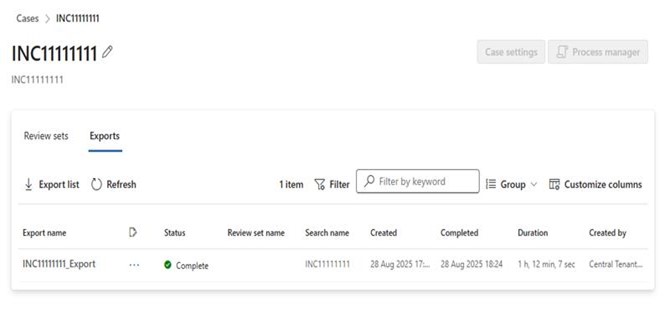
To download your files:
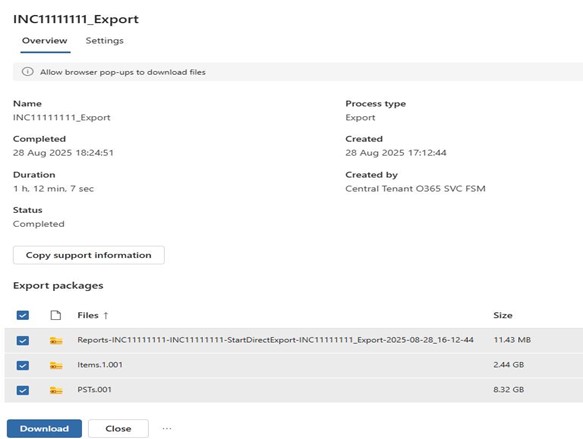
- Click anywhere on the row containing the Export details to open the fly-out pane
- Click the Download button for the export package you wish to retrieve.
- Your browser will begin downloading the selected file(s). Depending on the size, this may take some time.
- If prompted, choose a location on your computer where the files should be saved.
Best Practices for Downloading Export Packages
To avoid issues and ensure your download completes successfully, please follow these Microsoft best practices:
- Use the latest version of Microsoft Edge or Google Chrome.
- Choose a download location with sufficient free storage before starting (export packages may be several GB in size).
- Do not close your browser while the download is in progress.
- Do not use a VPN or unreliable internet connection, as this may interrupt the download.
- Verify the final file size against the size shown in the portal to confirm the download completed fully.
- Packages can be downloaded individually by selecting/deselecting the associated.
Full Microsoft guidance: Best practices for downloading export packages
Managing Your Downloads
You can configure where downloads are saved in Microsoft Edge:
- Open Settings → Downloads
- Set your preferred default download folder, or configure Edge to always ask where to save each file
See Microsoft’s help article: Change the downloads folder location in Microsoft Edge
Troubleshooting
If you cannot access the Case from the email link:
- Check that you are the originally intended recipient of the email. If you have been forwarded the mail you will not have permissions to the Case.
- the Case is still Open (Cases are Closed after 30 days and permissions may be removed)
- Closed Cases cannot be reopened and a new request will be needed to re-export the data
If you can access the Export Section but there is nothing listed under Export packages or the files appear empty, verify the Status of the Export is ‘Completed’ and select the Copy support information button and raise a ticket with the helpdesk providing these details and the Case Name/incident reference number
- If access issues persist, please contact the NHS.net Connect helpdesk for assistance.
| Last Reviewed Date | 24/09/2025 |
